Team & Collaboration
Purpose: Understand team visibility, collaboration, and project roles.
Before you start: A signed-in workspace and the permissions appropriate to your task.
Expected result: Team members can perform the work allowed by their assigned roles.
Team features let workspace administrators invite members, assign roles, review collection activity, and manage access from inside Mapplex.
1. Team Panel Overview
The Team & Shared panel is accessible from the Dashboard. It is a Pro feature — free users see a blurred preview with an unlock overlay.
The panel has two tabs:
- Performance — KPI dashboard with collection analytics
- Members — Workspace member roster and invite management
2. Performance Dashboard
The Performance tab summarizes field data collection activity for the selected date range.
Date Range Filter
At the top, a Date Range Picker lets you filter all KPIs by time period. Default: last 30 days. Tap Apply to refresh.
KPI Summary Cards
Four cards display key metrics:
| Card | Metric |
|---|---|
| Total Features | Total number of features collected in the date range |
| Contributors | Number of unique team members who contributed data |
| Avg / Member | Average features per contributor |
| Peak Day | The single day with the highest collection activity |
Geometry Breakdown
A visual bar chart shows the distribution of geometry types:
- Points (e.g., hydrants, poles)
- Lines (e.g., pipes, roads)
- Polygons (e.g., parcels, zones)
The stacked bar adjusts proportionally as the date range changes.
14-Day Activity Sparkline
A bar chart showing daily feature creation over the past 14 days. Hover over any bar to see the exact count and date. This helps supervisors identify productivity patterns and off-days.
Top Contributor
A highlighted card shows the team member who collected the most features in the selected period.
Contributor Leaderboard
A ranked list of all contributors with:
- Ranking indicators for the top contributors
- Feature count with progress bar (relative to the top performer)
- Breakdown by geometry type (points/lines/polygons)
- Number of layers touched
- Last active date
3. Members Tab
Workspace Member Roster
All workspace members are displayed in a continuous card list. Each member card shows:
- Avatar — Initial-based with gradient (or email icon for pending invites)
- Name & Email — Full name and email address
- Role Badge — Color-coded role indicator:
- Owner — Full control, billing, workspace deletion
- Admin — Full access, can invite and manage members
- Editor — Can edit features and review data
- Collector — Data entry only
- Viewer — Read-only access
- Feature Count — Number of features contributed
- (You) indicator for the current user
- Pending badge for invitations not yet accepted
Inviting a Member
(Requires Owner or Admin role)
- Tap Invite Member (top-right of the Members tab).
- The invite modal opens with:
- Email Address — Enter the colleague's email
- Assigned Role — Select from Collector, Editor, or Admin via a rich dropdown
- Tap Send Invite.
- The invitation is sent via Geova Cloud. The member appears as "Pending" until they accept.
Managing Members
Tap the ⋮ menu on any member card. Available actions depend on your role:
| Your Role | Can Manage |
|---|---|
| Owner | All members including admins |
| Admin | Editors, collectors, and viewers (not owners) |
| Editor/Collector/Viewer | Only themselves (to leave) |
4. Admin Dashboard
(Visible only to workspace Owners and Admins)
The Admin Dashboard is a separate view accessible from the navigation. It provides workspace-wide management:
Pending Approvals
A list of users who have requested access to the workspace. For each request:
- User name, email, and requested role
- Workspace name
- Approve button → Opens a modal to assign the actual role (Collector/Editor/Admin)
- Reject button → Permanently denies the registration
Active Team Members
A list of approved members (excluding the current user and owners). Each member shows:
- Name and email
- Role Selector — A dropdown for changing a member's role:
- Collector — Data entry
- Editor — Review and edit
- Admin — Full control
- Revoke button — Removes workspace access entirely after confirmation
Performance KPIs (Workspace-Wide)
The Admin Dashboard includes the same KPI analytics as the Team Panel but scoped to the entire workspace (not just the active project):
- Total features, active members, avg per member, peak day
- Geometry breakdown bar
- Top performer card
- Member leaderboard with medal ranking
Security
- Role changes are saved through Geova Cloud
- The assignable roles are limited to
collector,editor, andadmin; theownerrole cannot be assigned through the UI - Geova Cloud applies workspace-level access controls in addition to the permissions shown in the app
Work schedule and My work
Work Schedule requires Teams or Enterprise, enabled Work access and the appropriate project role. Team-panel access on a different plan does not by itself enable Work Schedule.
| Role | Work access in an admitted hosted project |
|---|---|
| Owner / Admin | Configure the schedule, create or update work, assign permitted members and set up recurring work |
| Editor | Create or update work and progress; cannot assign members or configure the team schedule |
| Collector | Open My work and update progress only on currently assigned work |
| Viewer | Read permitted work; no progress, planning or assignment changes |
- Open the intended project, then Layers and the layer's Work schedule action; Collectors see My work. Expand the layer's additional tools if needed.
- Review the due date, current status, assignee and selected view, such as Today or Overdue.
- For asset work orders, managers can use Show asset on map. Collectors tap an assigned work title to find its asset and available work actions. This navigation does not reassign the order.
- Change only the fields your role allows and choose the offered save action. Draft saved on this device; confirmation is pending is not Confirmed by server.
- After reconnecting, check Sync & recovery and verify the update from the manager's view. If assignment or access changed while offline, review the retained draft rather than creating a duplicate order.
Owners/Admins can assign members in Work schedule or review and confirm an assignment proposal in Geova AI. Chat never assigns someone merely because a question was asked: check the proposed orders and member, choose Confirm, then review the outcome in Work schedule. See Review a Work proposal.
Collector phone layout
In the standard Collector phone layout, the active project's map has no bottom navigation bar. Open ☰ to reach other screens. A layout assigned by your organization can show different navigation; tablet navigation also differs.
When an assigned asset work order is available, the next-job card brings it onto the map. Overdue work comes first, followed by today's work and upcoming work. Tap the card to open My work. Choose Go for directions; this passes the destination to your phone's maps application.
Use Start or Complete only when the work reaches that stage. Complete updates the job status; it does not fill or save an inspection form for you. Save required inspection answers and evidence separately. Offline progress remains pending until it is accepted after reconnection.
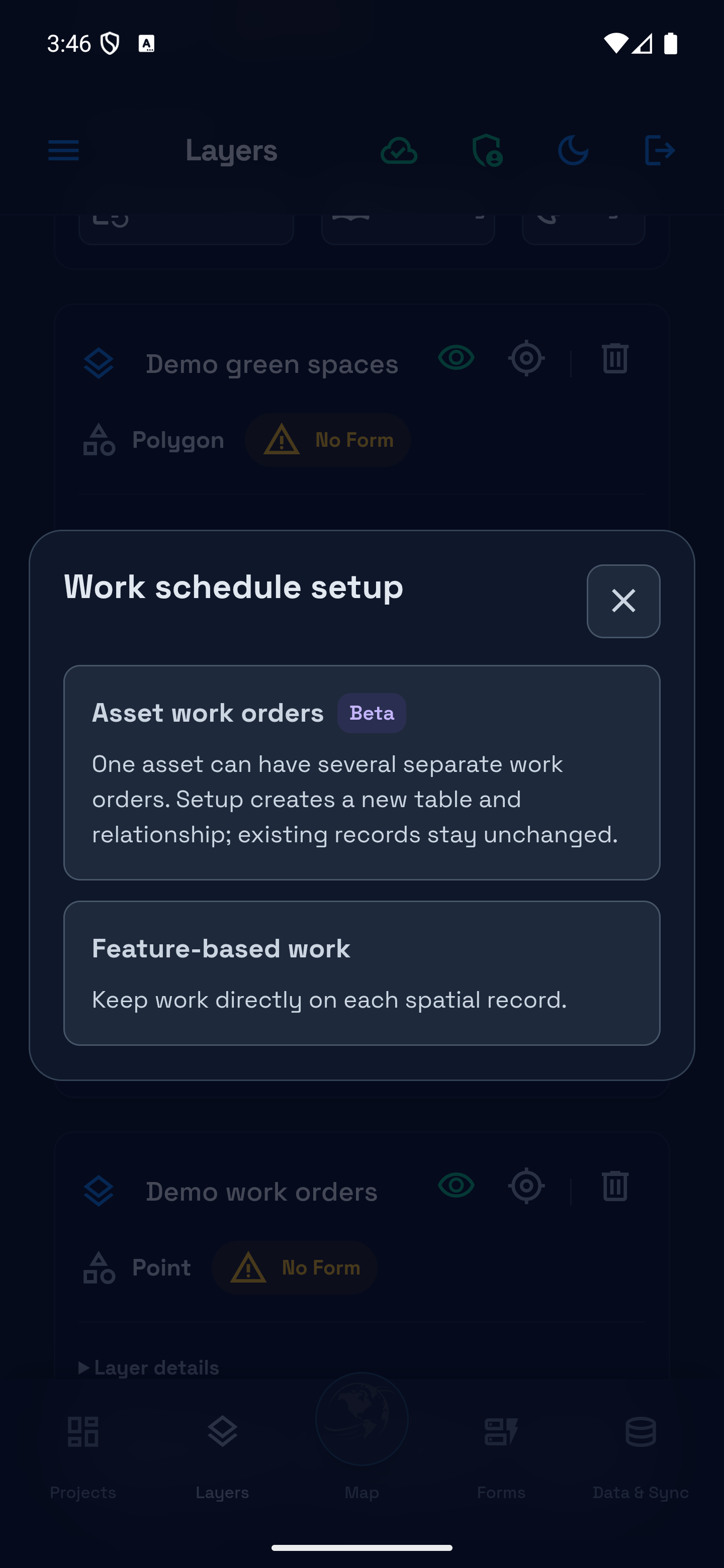
Choose how the layer stores work
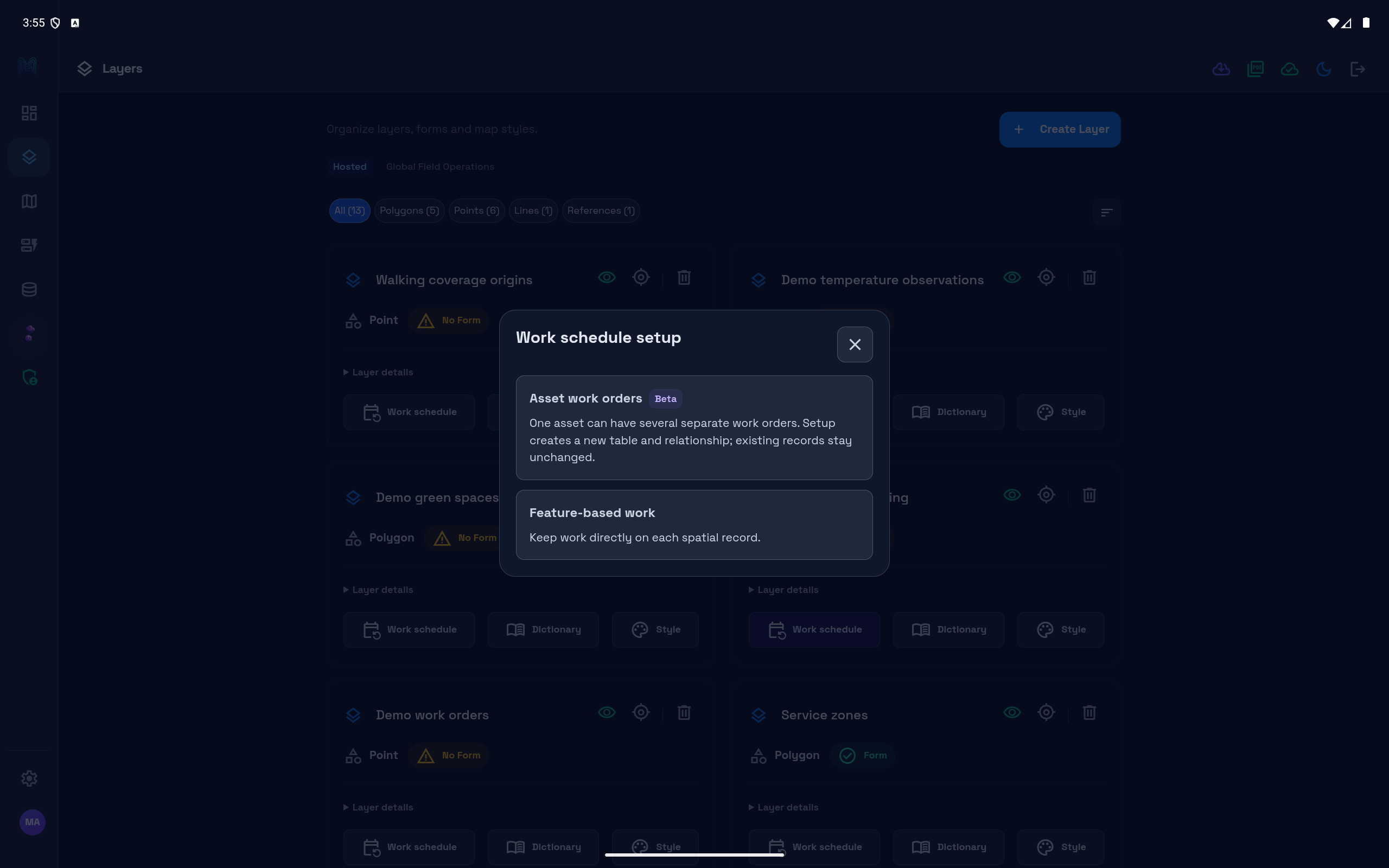
If an Owner/Admin opens an eligible hosted layer that has not been configured for Work, Work schedule setup may offer two choices:
| Choice | Use it when |
|---|---|
| Asset work orders (Beta) | One asset needs separate jobs, such as an inspection and a repair, each with its own progress. Selecting this starts setup of a linked work table; existing asset records stay unchanged. |
| Feature-based work | Work belongs directly to each map record. Open this option to review the team-schedule setup before saving it. |
Choose the approach with your workspace manager before starting setup. A layer that already uses a Work approach opens its existing panel instead.
See Work setup on a tablet-size display
Use Settings → Field tools → Work map icon to hide or restore the map shortcut. Orders and role permissions remain unchanged. Local-only schedules are separate from hosted team assignments. In-app reminders refresh while the Work panel is open; they are not phone background notifications or email reminders.
Next: Proceed to Module 08: Settings & Profile to configure your account and application preferences.