Forms & Smart Logic
Purpose: Configure practical fields, controlled choices, and conditional rules.
Before you start: A layer, form-editing access, and agreed collection requirements.
Expected result: A saved form behaves correctly with representative inputs.
Forms define the attributes collected for each layer. When a user draws or edits a feature, the related form appears for data entry. This module covers field setup, schema import, spatial auto-fill, Lexicon picklists, and Smart Logic rules.
1. Navigating to the Form Builder
- Open Forms from the navigation available in your layout. Owners, admins and editors design forms here. Collectors enter observations using the form on the map; viewers review records within their read-only access. Neither role normally sees the form-design screen.
- The Form Builder screen opens with a layer selector at the top.
- Select a layer from the "Select mapped Layer to configure" dropdown. The builder loads all existing fields for that layer.
You must create at least one layer in the Layer Manager before you can build a form. If no layers exist, you'll see a prompt to navigate to the Layer Manager.
2. Field Types
Tap + Add Field to open the Configure New Field dialog. The following field types are available:
| Type | Icon | Description |
|---|---|---|
| Text (Single Line) | 📝 | Free-text input for names, descriptions, IDs |
| Number | 🔢 | Numeric-only input for measurements, counts, ratings |
| Dropdown (Manual Options) | 📋 | A picklist with comma-separated values you define (e.g., "Good, Fair, Poor") |
| Lexicon Picklist | 📖 | A shared, reusable controlled list; hosted lists can serve workspace projects (Pro) |
| Date Picker | 📅 | Calendar date selector, such as an inspection day |
| Date and time | 🕒 | A date with a time, such as the start of an inspection visit |
| Checkbox (True/False) | ☑️ | Boolean toggle for yes/no questions |
| Photo (Camera) | 📷 | Single photo capture using the device camera |
| Gallery (Multiple Images) | 🖼️ | Multi-photo gallery with carousel support (Pro) |
| Attachment (PDF/File) | 📎 | File attachment support for documents |
| Auto-Geometry | 🌐 | Automatically computed from the feature's geometry: coordinates (for points), length (for lines), or area (for polygons) — no manual input needed |
Configuring a Field
For each field, you can set:
- Field Label — The visible name shown during data entry (e.g., "Asset Condition")
- Data Type — Selected from the table above
- Required — Check "This field is strictly required" to prevent saving a feature without this value
- Dropdown Options — For Dropdown type: enter comma-separated values (e.g., "Good, Fair, Poor")
Data Type Lock: The type is locked when editing an existing field, even before it has collected data. Labels and other allowed settings can still be edited. For a different type, add a replacement field, check existing records and dependent rules, and retire the old field only after reviewing the impact. Where offered, Upgrade to Lexicon Picklist provides a separate supported path for an existing text field.
Dropdown, Lexicon, or Data Dictionary?
| Tool | What it changes | Use it when |
|---|---|---|
| Dropdown (Manual Options) | The choices for one form field | One field needs a short list such as Good, Fair, Poor |
| Lexicon Picklist | A reusable controlled list linked to fields | Several fields or layers in the project need the same approved choices |
| Data Dictionary | The meaning of a field: alias, units, type hints, or semantic role | An imported name such as Pressure_PSI needs a clear label and documented units |
A Data Dictionary alias does not create a dropdown or convert a pressure value to another unit. A Lexicon keeps linked choices consistent; review changes to a shared list because other linked fields use it too.
For example, use a manual dropdown for a one-off training form. Use a project Lexicon when both inspections and work orders must share the same condition codes. Add a Data Dictionary description when a field name needs explanation. These tools can work together.
Readable choices and rule indicators
Use clear labels in dropdowns and Lexicons. Collectors choose the readable label; a saved record's popup also uses that label when it has one unambiguous match in the current list. A missing or ambiguous match may still show its stored value. Renaming a label does not rewrite old stored values.
A list/book symbol means the field uses choices. A separate Smart Logic indicator means a rule affects the field; list membership alone does not make it required. In Planner's Try the form preview, Required by rule or Optional by rule follows the current answers. In actual capture, check the required marker and save validation after changing the condition.
For example, configure Recommended action to be required for Poor or Dead, and optional for Good. Test each choice, including a return to Poor after Good. A permanently required field and a conditionally required field are different settings; check the full rule set if the result is unexpected.
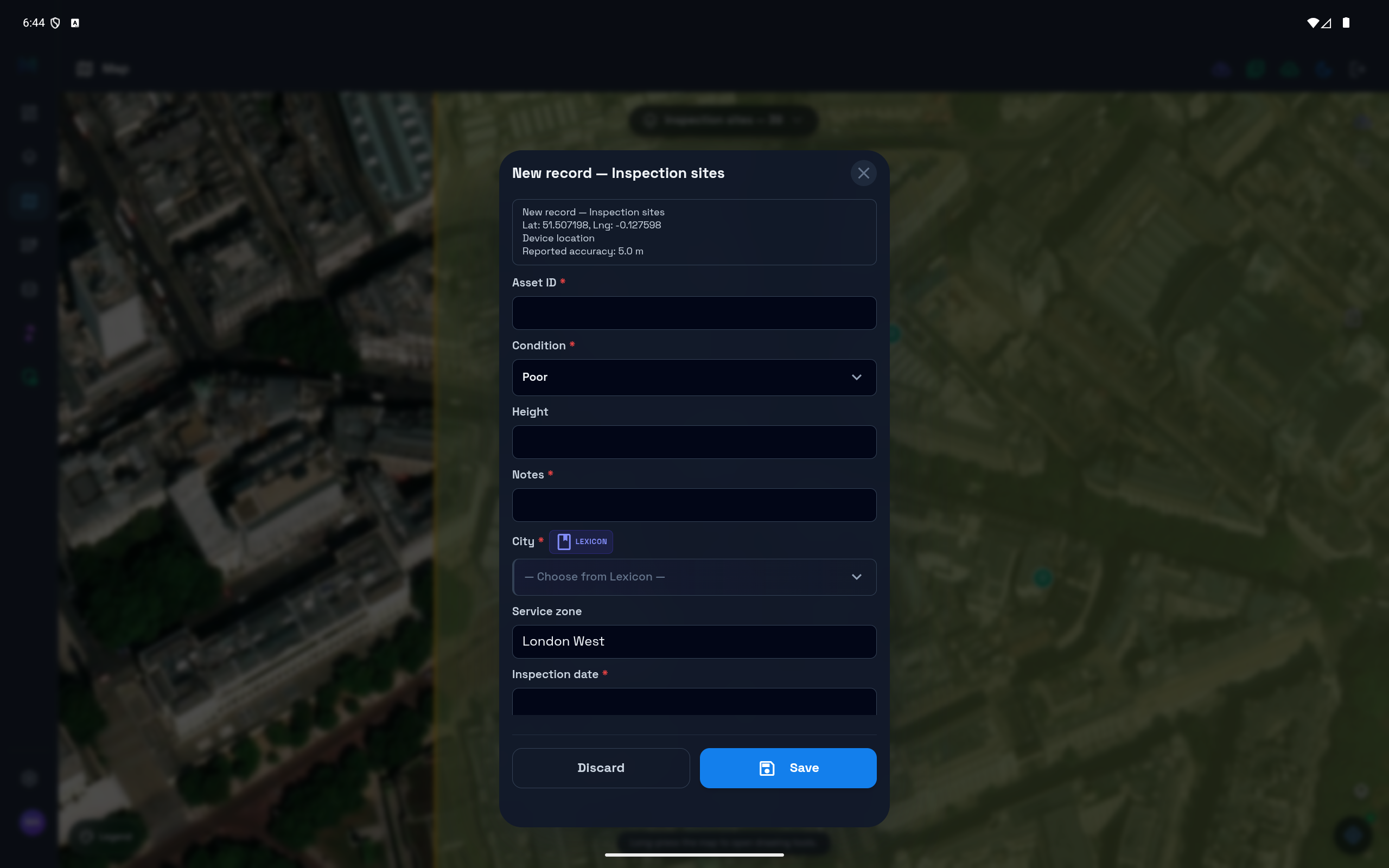
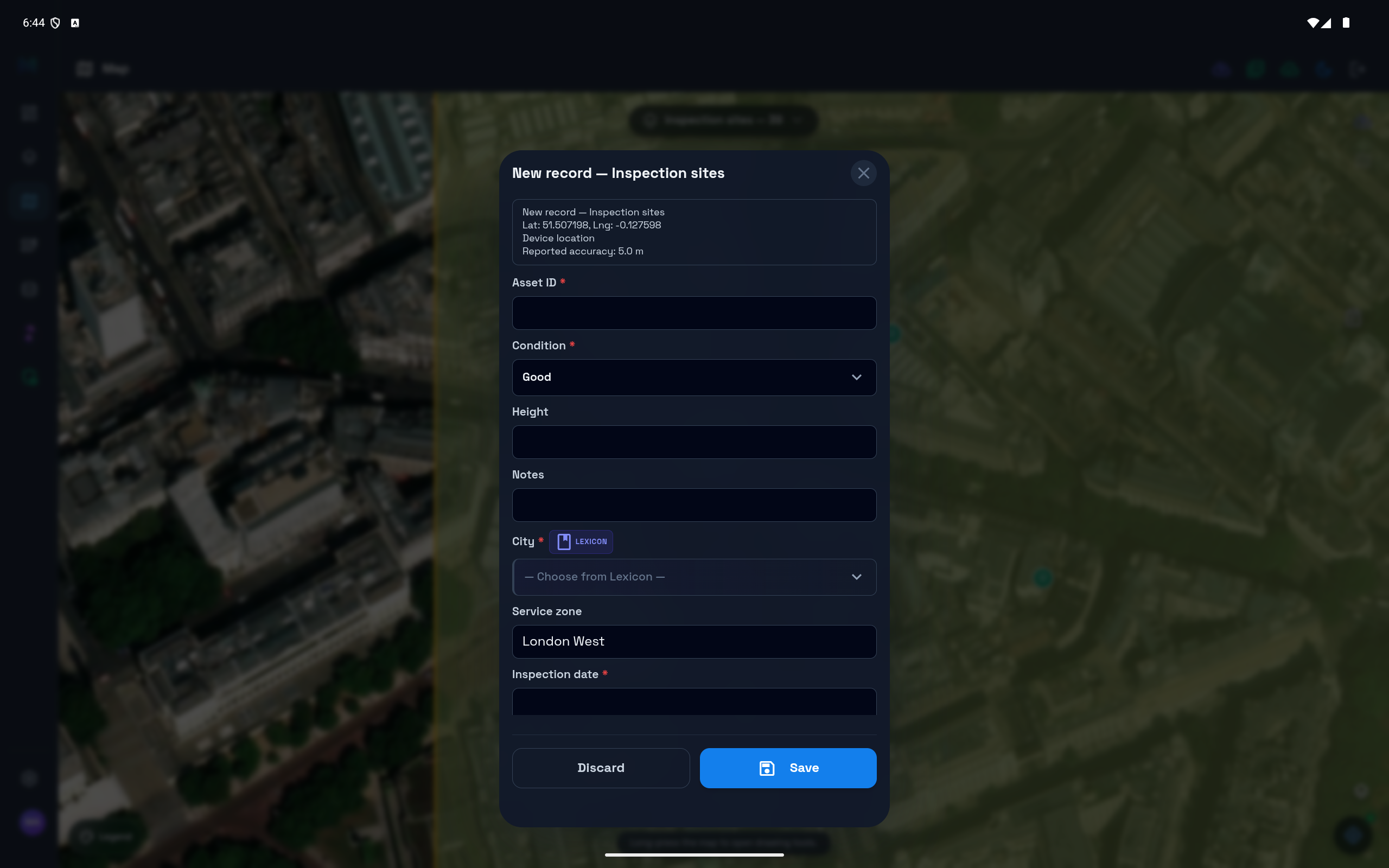
Example: choosing a condition changes whether Notes is required
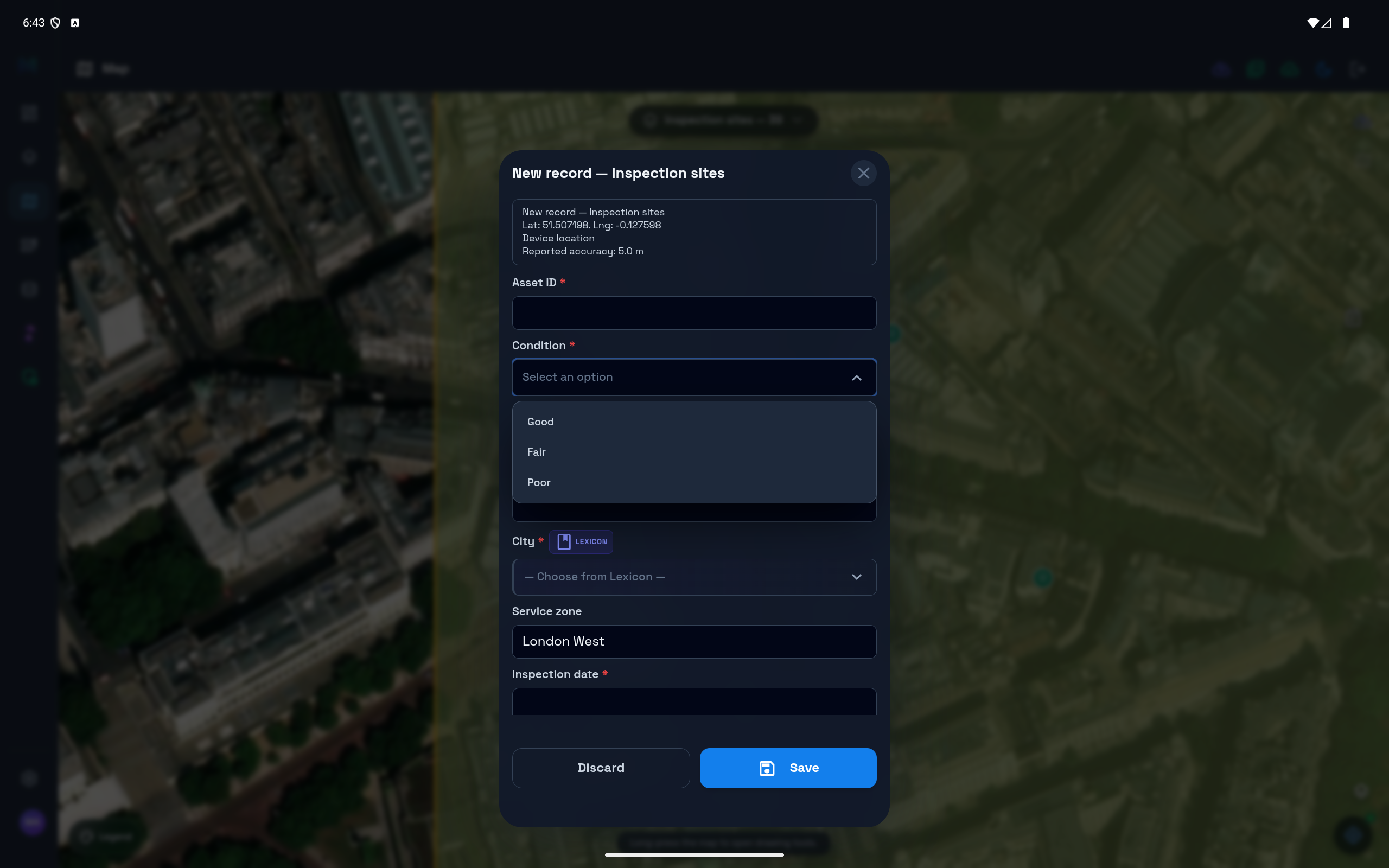
In this practice form, Poor makes Notes required and Good makes it optional. Check both choices before using your form in the field. The example uses fictional data and a sample location.
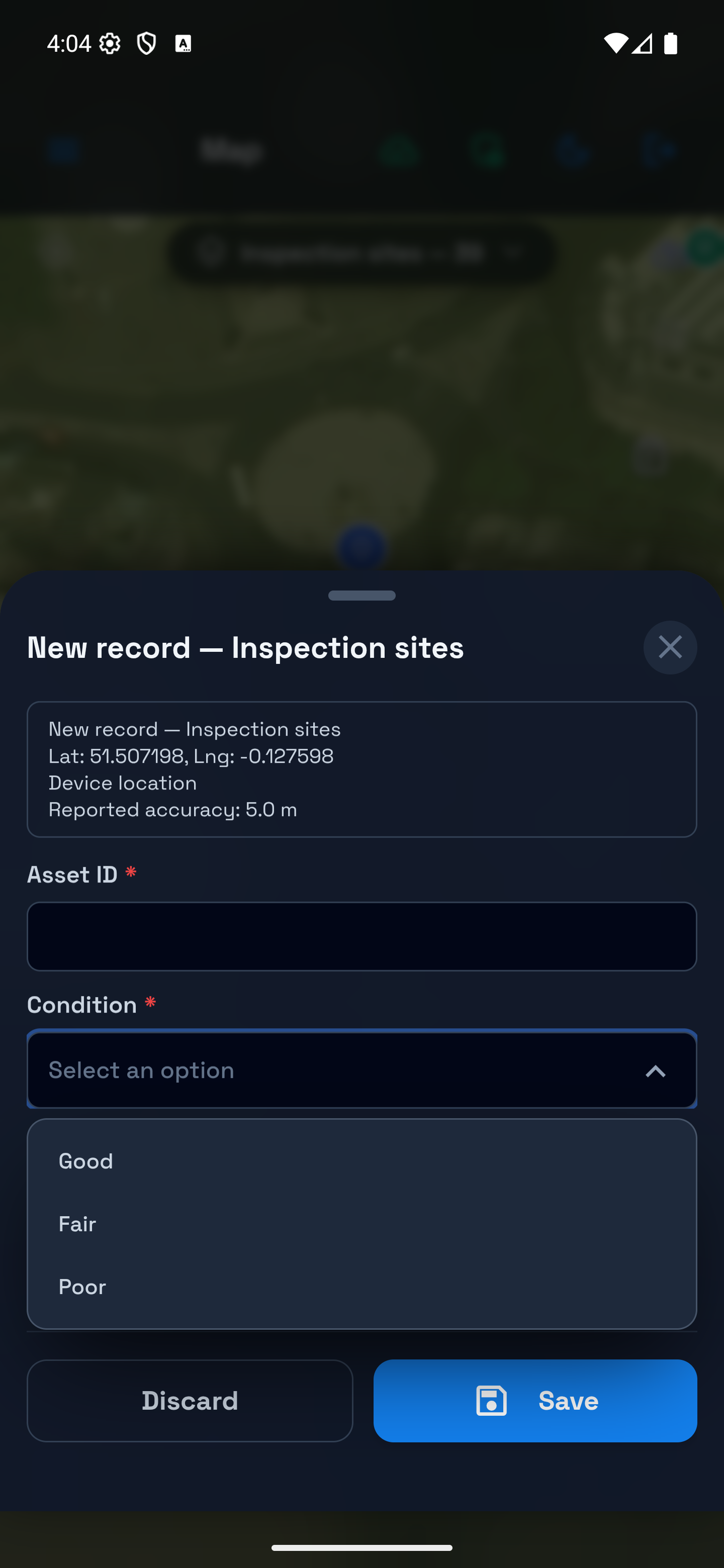
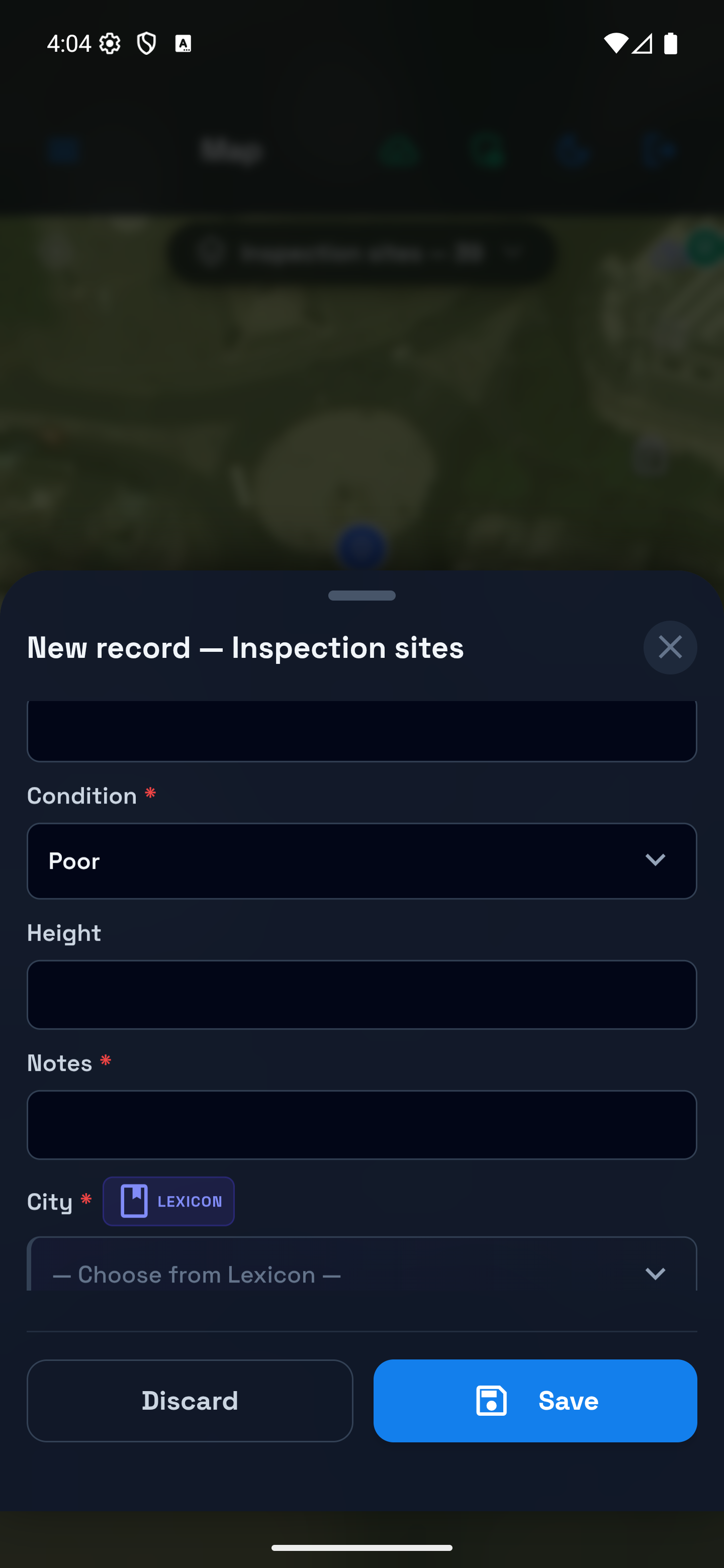
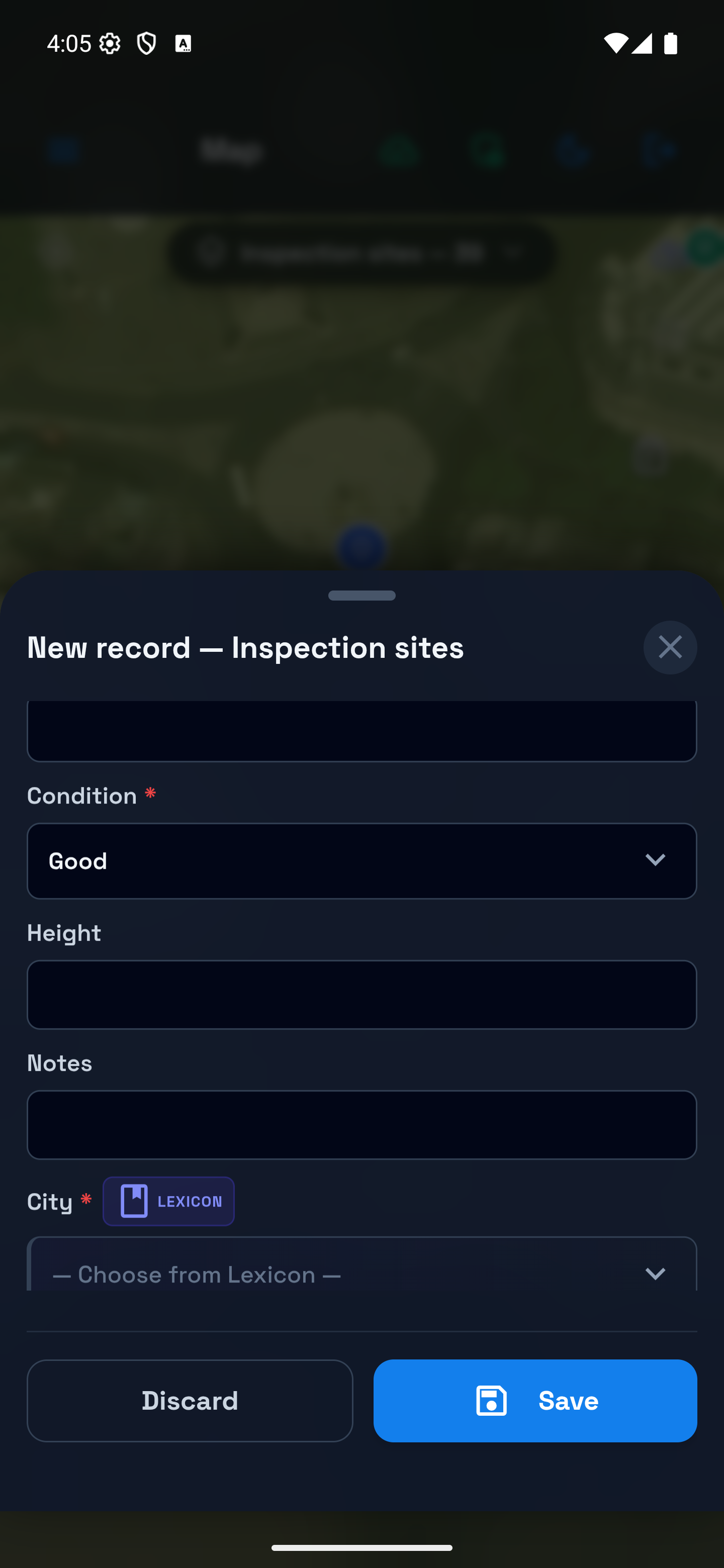
See the same choices and rule in English tablet layout
The tablet uses the same form and required-field rule. Scroll inside the form for the remaining fields. These are unsaved drafts at a simulated location.
Preparing Fields for Voice Entry
Eligible workspaces can use Fill by voice in Quick Capture to propose values for an existing form. Give fields clear labels and descriptions, configure intended numeric units, and keep dropdown/Lexicon choices current. Voice fills eligible empty text, number and choice fields and explicitly spoken checkbox values. Dates, media, calculated and spatially mapped fields keep their normal workflows. Review the proposed Smart Logic changes before applying; voice entry does not create fields or change the form definition.
3. Spatial Auto-Fill (Reference Layers)
Spatial Auto-Fill populates a field value by comparing the collected feature with another reference layer. In practice, Mapplex looks up the reference polygon that contains the feature location and copies one property from that polygon into the form.
This means the reference is another layer in the project, not a new overlay layer created by the form. For example, a streetlight point can copy district_name from the district polygon that contains it.
- In the Add Field dialog, check "Auto-calculate from Spatial Reference".
- Two new dropdowns appear:
- Reference Layer — Select a polygon layer that contains background zones (e.g., "Zoning Districts", "Soil Types").
- Extract Property — Select which property from the reference layer to extract (e.g., "Zone_Name", "Soil_Class").
When a field worker draws a point inside a reference polygon, the form auto-fills with the matching property value. For line and polygon features, Mapplex uses the feature centroid for the lookup, so the value comes from the reference polygon containing the feature's center.
Example: A project includes parcel polygons with a
Zone_Nameattribute. When a field worker places an inspection point inside a parcel, the "Zoning District" field fills with the matching zone value.
Important: Spatial Auto-Fill is a form lookup, not a full overlay analysis. It does not split geometry or calculate intersection area; it copies the selected attribute from the matching reference feature.
Review a reference mapping from Forms
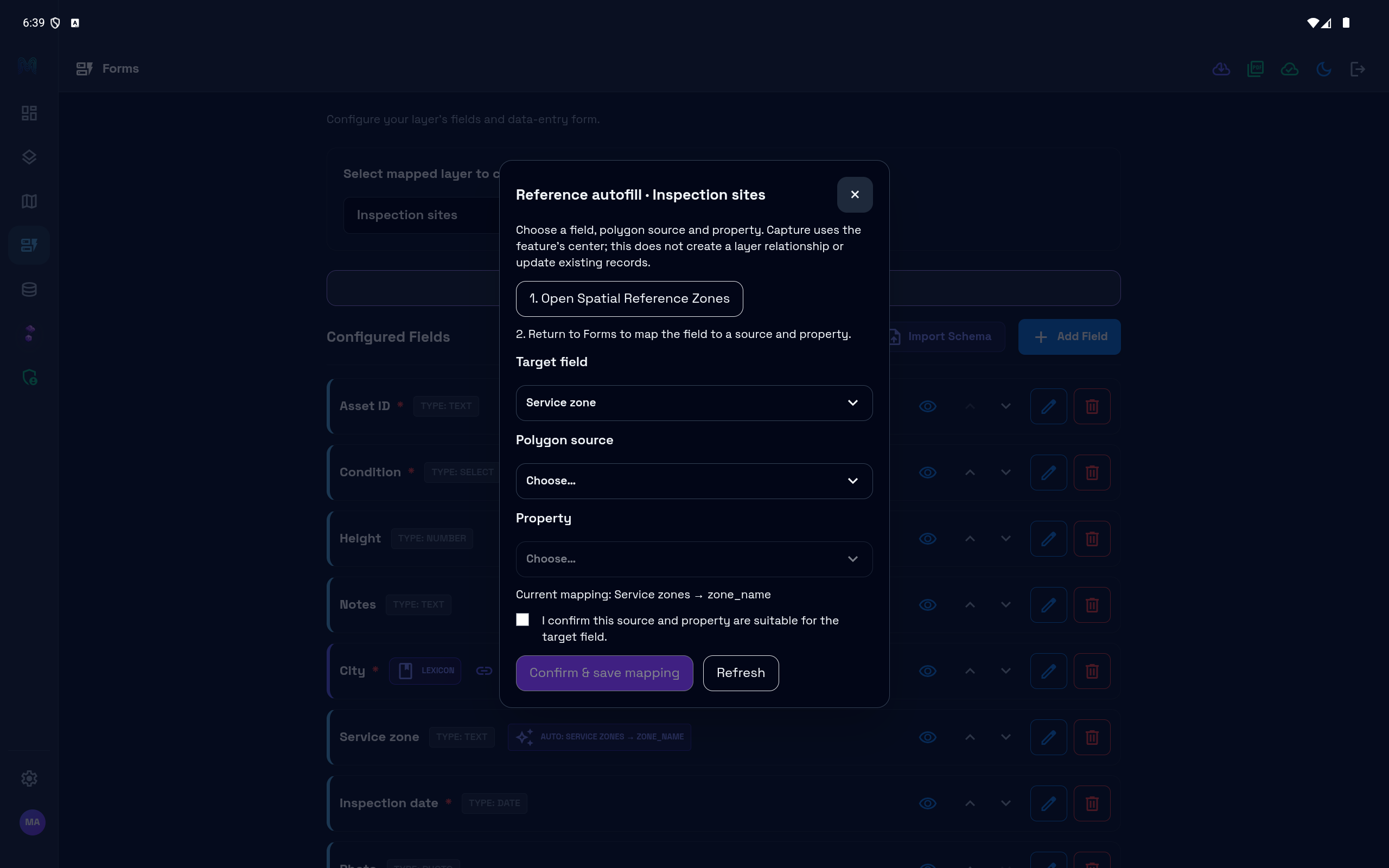
You can also choose Reference autofill in Forms for the selected layer:
- If the reference polygons are missing, choose Open Spatial Reference Zones and import them, then return to Forms.
- Choose the Target field, Polygon source and Property. Review any Current mapping shown.
- Confirm that the source and property are suitable, then choose Confirm & save mapping. The button stays disabled until the required choices and confirmation are complete.
- Check the save message, then test a new capture inside the reference polygons. Importing polygons alone does not enable auto-fill, and saving a mapping does not update earlier records.
Example: choose where an auto-filled value comes from
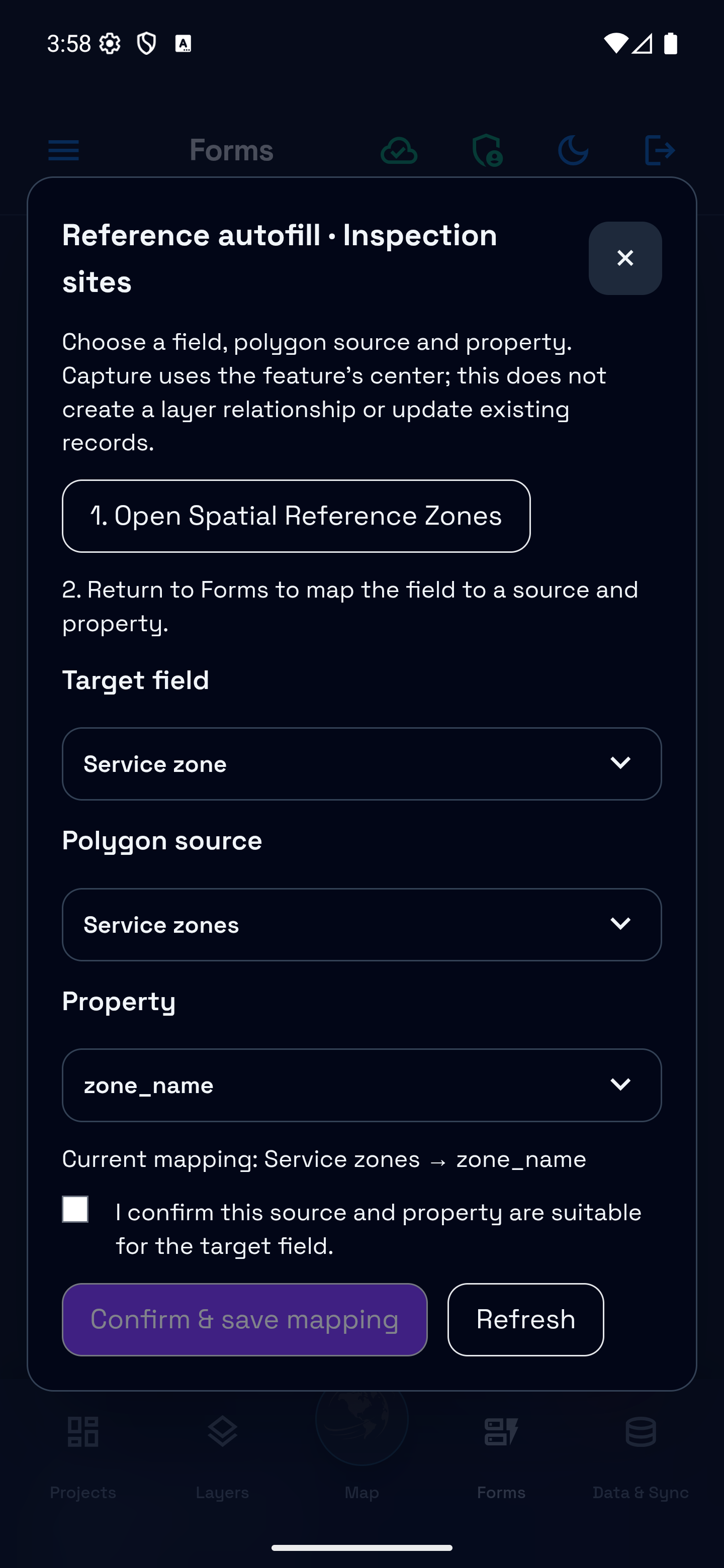
See reference autofill in English tablet layout
Integrity Warnings and Capture Diagnostics
Mapplex checks whether each saved Spatial Auto-Fill mapping still points to an available reference layer and property.
- A configured field shows Needs attention when its saved source layer or property is no longer available. The saved mapping is retained; Mapplex does not silently replace or delete it.
- Editors can open the field to review the existing mapping. Read-only users see the same status without receiving edit permission.
- Restoring the missing reference layer or property clears the warning after the reference data refreshes.
During Quick Capture and standard Map capture (drawing, Precision drawing, GPS, or pasted coordinates), an unavailable mapping produces a non-blocking message such as "Spatial autofill unavailable for 1 field; enter it manually." The affected field remains editable and the feature can still be saved after the operator enters the value manually.
A valid mapping that simply has no polygon at the capture location is treated as a normal no-match, not as a broken configuration warning.
4. Importing a Schema
Instead of building a form from scratch, import an existing schema:
- Tap the Import Schema button (top-right of the Form Builder).
- Select a file:
.json/.geojson— Extracts property keys as fields.csv— Uses column headers as fields.kmz/.kml— Extracts attribute fields from KML data.gpkg— Reads columns from a GeoPackage table
- Mapplex extracts supported field definitions and merges new fields into the selected form. It skips duplicate IDs or labels, system/hidden keys, locked field types, and fields beyond the 500-field schema limit.
- Read the import message for the numbers added and skipped. Review field types, labels, choices, order, required settings, and rules, then wait for Saved on device. If synchronization is queued, confirm delivery before other devices use the revised form.
Import Schema prepares the entry form; it does not import the file's feature records. Use Data & Sync to bring geographic records into the project. Existing matching fields are not automatically replaced just because you import the same file again.
5. Managing Fields
Once fields are created, they appear as cards in the Configured Fields list. Each card shows:
- Field label and data type
- Required badge (red asterisk) if the field is strictly required
- Edit — Modify the field's label, options, or settings
- Delete — Remove the field after reviewing confirmation; dependent Smart Logic rules are also removed, and the dialog reports that impact
Field Order and Visibility
Use Move field up and Move field down to put questions in the order collectors answer them. For example, place Asset ID first, Condition next, and supporting notes or evidence afterward.
Use Hide field or Show field to control a field's default presentation. This keeps the field in the schema; Delete is a different action. Review Smart Logic when changing visibility, because conditional rules can also affect the entry form.
Benefit: A clear question order reduces backtracking, and hiding unneeded inputs keeps the field form focused. Save and test the form with the actual collector role before deployment.
Auto-Save
The Form Builder auto-saves changes after a short delay. A status message shows:
- "Unsaved changes" — A change is waiting to be saved
- "Saving..." — Save in progress
- "Saved on device" — The latest changes are stored locally.
- "Saved on device · Sync queued" — The local save completed and delivery is queued.
- "All changes saved" — An unchanged form can display this status; it does not independently prove delivery to other devices.
If the latest changes do not save
Wait for a saved status before leaving the builder. If it says Saved on device · Sync queued, confirm synchronization before relying on the revised form on another device. If navigation or a layer change reports a save failure, choose Stay and retry or Stay on this layer, as offered, then retry after resolving the problem. Leaving or switching without saving can lose the latest edits.
Reopen the layer's form and make one practice entry to confirm that the saved configuration is the one collectors will use.
6. The Lexicon Panel (Shared Picklists)
In Forms, scroll below the fields and Smart Logic to expand Mapplex Lexicon. This panel holds reusable controlled lists, also called coded domains. A list can serve several fields; hosted lists are shared within the workspace and can be available across projects.
Why Use Lexicons?
If three layers all need a "Material Type" dropdown with the same options, create one Lexicon and link it to each field. Updating the Lexicon updates the linked picklists. Hosted Lexicons are shared within the workspace and can be available across its projects; check the linked fields before changing a shared list.
Linking a Field to a Lexicon
When creating a Dropdown field, you'll see a toggle: "Link to Lexicon":
- Toggle it ON.
- Select a Lexicon from the Select Lexicon dropdown.
- A preview of the Lexicon's values appears.
- Save the field — it now pulls its options from the Lexicon registry.
Lexicon Suggestions
When a field label matches an existing Lexicon name, a suggestion banner appears:
"Building Type" - 12 items - Linked to 2 fields [Link it]
Tap Link it to connect the field to the matching Lexicon.
AI-Generated Lexicon Drafts
Geova AI can propose a reviewable coded-value list. Arabic labels are preserved, while Mapplex assigns safe internal codes when a label cannot be used as a code. Review every value, definition, default, and cited standard before saving; a generated list is a starting point, not a guarantee of completeness or standards compliance.
Upgrade to Lexicon
If you have an existing text field and want to convert it to a Lexicon picklist, the "Upgrade to Lexicon Picklist" button appears. This is a safe upgrade — existing text values are preserved as picklist selections.
7. Smart Logic (Conditional Rules)
Smart Logic changes field visibility, required status, or values when a condition is met. It can keep a form short, ask for evidence only when needed, and calculate a value consistently.
Mode Toggle
At the top of the Smart Logic panel, toggle between:
- Simple — A sentence builder with clickable choices, plus an optional AI prompt
- Advanced — A structured editor for conditions and actions
Both modes edit the same rules. You can build a rule manually in Simple mode; generating it with Geova AI is optional.
Simple Mode: AI-Assisted Rules
- Type a rule in plain English in the prompt bar:
"If Building Type is Residential, show the Number of Floors field"
- Tap Generate (costs 1 AI credit).
- Geova AI drafts the conditional rule and adds it to the rules list.
- Review and adjust if needed.
Before a generated rule is added, Mapplex checks it against the current form schema. The rule must use existing field IDs, supported conditions/actions, and valid fixed or Lexicon values. An invented field, unsupported operation, or unknown coded value is rejected instead of being saved as an inactive rule. The rule remains a draft until the form itself is saved.
Advanced Mode: Manual Rules
- Tap + Rule to add a new rule.
- Configure:
- Source Field — The field to watch for changes (e.g., "Building Type")
- Condition — The matching condition (equals, not equals, etc.)
- Target Field — The field the action will affect
- Action — Show Field, Hide Field, Make Required, or Set Value (Calculated Field)
Choose a rule by the result you need
| Action | Practical use | Check before collection |
|---|---|---|
| Show Field / Hide Field | Show damage notes only for poor-condition assets | Change the condition in both directions |
| Make Required | Require supporting evidence when an asset needs repair | Try saving with that evidence missing and then supplied |
| Set Value (Calculated Field) | Set an approved value, copy another field, or calculate a numeric result | Change the inputs and verify the saved result |
Use Add AND when all conditions in a group must match. Use Add OR Group when either group may match. Simple mode offers the corresponding and also... and or, when... choices. For example, Condition is Poor AND Asset Type is Hydrant targets damaged hydrants; using OR would also include other poor assets and hydrants in other conditions.
Worked example: calculate an estimated cost
Create Number fields named Quantity, Unit Cost, and Estimated Cost.
- Add a rule with the condition Quantity greater than 0.
- Choose Set Value (Calculated Field) and target Estimated Cost.
- Open the action's value-source control and choose Build Formula (A × B).
- Select Quantity and Unit Cost as the operands and multiplication as the operator.
- Wait for the saved status. In a practice entry, use Quantity = 3 and Unit Cost = 25; check that Estimated Cost becomes 75.
- Change Quantity to 4, then test zero or blank inputs, save, and reopen. Confirm the behavior matches your workflow before using it operationally.
Operands can be fields or a Constant number. Choose a fixed value from the available options when targeting a controlled field. Resolve conflicts or circular calculations reported by the builder; avoid having several rules compete to set the same target. A calculation does not infer currency, tax, or measurement units.
How It Works in the Field
When a field worker fills out a form, Smart Logic evaluates the rules as values change. Fields appear or disappear based on the worker's selections, keeping the form shorter and more relevant.
Example: A utility inspection form includes fields for both gas and water assets. Smart Logic can show gas-specific fields only when "Gas" is selected and water-specific fields only when "Water" is selected.
Worked example: show Notes for a poor condition
First create Condition as a dropdown with Good, Fair, Poor, and Notes as a text field.
- In Advanced Smart Logic, add one rule.
- Choose Condition as the source, an equals condition, and Poor as the matching value.
- Choose Notes as the target and the show action.
- Wait for the form's saved status.
- Open a practice feature and test the choices below.
In Simple mode, the equivalent request is “Show Notes when Condition is Poor.” Review the generated rule and its credit information before using it.
| Input | Expected result with this one rule |
|---|---|
| Condition = Poor | Notes is visible |
| Condition = Good or Fair | Notes is hidden |
| Change Poor → Good → Poor | Notes follows the condition each time |
The show rule reverses when its condition becomes false, so this example does not need a second rule to hide Notes. Start with one rule before adding more conditions or actions.
Showing a field does not automatically make it required. Hidden fields do not block saving as required inputs. Hiding is also not a command to erase earlier answers: test a filled Notes value while changing Condition, then save and reopen the feature to check the result your workflow needs.
If behavior differs from the table, inspect other rules targeting Notes, the selected choice value, and the saved form. If Mapplex reports conflicting rules, resolve them before relying on the form. For repeated visits, put visit-specific rules on the visit form where that workflow supports them; see Record repeated inspections.
Before handing the form to collectors
- Confirm the intended layer and wait for Saved on device. Check any queued synchronization before relying on the form on another device.
- Create a practice record with the collector's actual role.
- Test normal, missing, and exceptional answers, including both sides of conditional rules. If the form came from Planner, use Try the form first, then repeat the check during actual capture; preview does not test real media or location.
- Check spatial auto-fill at an inside and outside location; enter a value manually when the lookup has no usable answer.
- Save and reopen the record, then inspect it in Data & Sync.
Benefit: This catches confusing labels, unwanted required fields, and rule interactions before they interrupt field work.
8. Role-Based Access
Form editing is restricted by role:
| Role | Can Edit Forms? | Can View Forms? |
|---|---|---|
| Owner | ✅ | ✅ |
| Admin | ✅ | ✅ |
| Editor | ✅ | ✅ |
| Collector | ❌ | ✅ (read-only) |
| Viewer | ❌ | ✅ (read-only) |
Read-only users see the form structure but all editing controls (Add Field, Import Schema, Smart Logic) are hidden.
Next: Proceed to Module 05: Data & Sync to export, import, and synchronize your collected data.