Map View
Purpose: Use map tools to collect, inspect, and edit spatial records.
Before you start: An active project and layer, device permissions, and any required offline maps.
Expected result: You can save and reopen the intended geometry and attributes.
The Map View is where users draw features, collect GPS locations, measure distances and areas, edit geometries, cache offline tiles, and review spatial results.
1. Map Interface Overview
When you open the Map View, the map fills the screen and shows controls around the edges.
Collector on a phone: the standard layout gives the map the full screen without bottom tabs. Open ☰ for other screens, use Record for point capture, and open the next-job card for assigned asset work. All saved or N waiting describes the known sync queue; tap it to review delivery. Your organization's assigned layout and the tablet layout can differ. See the collector quick-start.
The available controls depend on your role, layer and enabled tools:
| Control | Position | Purpose |
|---|---|---|
| Layer Selector Pill | Top-center | Switch the active drawing layer |
| Offline Map | Top-right | Download tiles for offline use |
| Basemap Toggle | Top-right | Switch between Satellite and Street map |
| Layer Visibility | Right side | Show or hide individual layers |
| Measure Tool | Radial menu; right side when toolbar controls are shown | Enter temporary distance/area measurement |
| Record Path | Right side | Build a line from GPS samples, then review and save (requires GPS Recording Tools) |
| Silent Track | Right side | Record a recoverable route; supported Android builds continue while locked (requires GPS Recording Tools) |
| Advanced Edit | Side button or polygon radial menu | Owner/Admin split and merge; enable Advanced Edit for the side button |
| Sketch Mode | Sketch Tools on the map | Local annotations and notes, separate from collected features (requires Sketch Mode) |
| GPS Pin | Bottom-right / radial menu | Review a phone position, then confirm a point or add a drawing vertex |
| Quick Capture | Bottom-right / GPS tools | Create a point at your current GPS location with fewer taps (requires Quick Capture entitlement and setting) |
| Status Bar / Action Bar | Bottom-center | Shows the active task and its available Add Point, Undo, Finish, and Cancel controls |
| AI Preview Pill | Bottom-left | Shows/hides Geova AI spatial query results on the map |
2. Selecting a Layer & Drawing
Selecting the Active Layer
Tap the Layer Selector Pill, then select the layer that should receive the new feature. The layer's geometry type determines what you can draw. Other visible layers provide context; they are not automatically the collection target.
Drawing Features
Use radial drawing controls is on by default. Long-press empty map space, or right-click on desktop, and choose Draw. If you prefer a visible toolbar, turn that setting off and choose Draw Shape on the floating toolbar.
| Geometry | Drawing workflow |
|---|---|
| Point | Place one location, then complete the form |
| LineString | Add at least two vertices, then finish |
| Polygon | Add at least three vertices, then finish the closed boundary |
During radial drawing, the bottom action bar provides Undo Last Point, Finish, and Cancel. Direct drawing also supports the configured double-click/double-tap finish gesture. Completing the geometry opens the layer's form; finish the attributes and save before treating it as a collected record. Drawing can remain active for the next feature. When collection is finished, close the form and cancel the active drawing mode.
The current standard layer selector supplies Point, LineString, and Polygon drawing. A separate Rectangle drawing button is not exposed by this toolbar.
Standard Capture (Quick Capture Off)
Quick Capture is optional. To use the regular form, open Settings → Field tools, turn Quick Capture Mode off, then choose Done.
- Select the intended project and layer.
- For a point, place a drawing point or review a temporary location pin and choose Confirm Location. For a line or polygon, complete the vertices and choose Finish.
- In New record — [layer name], fill the layer's attributes and scroll through all remaining fields. Required-field rules, linked Lexicon choices and configured spatial autofill still apply.
- Choose Save. Use Discard if the draft should not be kept.
- Reopen the record in the table or use the saved map feature's Attributes action. The saved-record form is titled Edit — [layer name]; its context also identifies it as a saved record. Check delivery separately for hosted work.
Quick Capture Mode selects the point-entry workflow; Use radial drawing controls selects how drawing tools are presented. With radial controls off, use the floating toolbar's Draw Shape. Turning Quick Capture off does not automatically start drawing.
Follow Standard capture, CAD and SHP for an actual saved London inspection, phone screens and the tablet-mode editor.
Precision Crosshair
Use Add Point in the drawing action bar to switch from direct drawing to Precision. That first press activates the crosshair. Pan the map underneath it, then press Add Point again to capture each location.
A point completes after one captured location. For a line or polygon, add the remaining vertices and select Finish. With the toolbar visible, Precision Crosshair starts the same input method.
Choose the input method before placing vertices: switching resets the current draft. In Precision, Cancel first discards the crosshair draft and returns to direct drawing; use Cancel again if the status still says Drawing and you want to exit.
Benefit: The target stays visible while your finger pans the map, making small corners easier to place. This controls placement; it does not improve the accuracy of the source coordinates or basemap.
Snap Engine
Snap to Features is on by default. During drawing it can align a draft vertex with a nearby visible line or polygon edge. Inspect the cyan snap indicator before placing the vertex; turn snapping off if it selects an unintended edge.
Snapping helps adjacent boundaries meet cleanly, but it does not prove that the completed shapes form a valid topology or connected network.
Follow Contextual drawing and precision controls for a complete exercise, menu choices, and recovery steps.
3. GPS Features
Grabbing Your GPS Location
Select the intended layer and tap GPS Pin. Mapplex obtains a phone position, moves the map, and shows a temporary draggable pin with GPS accuracy information.
Review the location, then choose Confirm Location for a point or Add Vertex for a line/polygon draft. A point continues to its form or the enabled Quick Capture workflow. A vertex still needs the rest of the drawing and its save workflow.
A temporary pin is not a saved feature. Close its popup to discard it, or confirm it before starting another location pin. Use Phone positioning for ordinary and Enhanced Phone Capture, uncertainty, permission checks, and saving.
Quick Capture
When Quick Capture is enabled and available to the workspace, confirmed point locations follow its faster collection workflow. Prepare the active layer and form first, and test the saved result before repeated collection.
Fill a Quick Capture Form by Voice
Use voice entry when one short description can fill several fields in the current record. For example, with matching fields and choices: “Condition Poor. Notes: identification label needs repair.” Review the proposed condition and notes before applying them. The GPS location still comes from the normal capture step.
Before you start: Turn on Quick Capture Mode in Settings, select the intended Point layer, and confirm its GPS location. Voice entry also requires a signed-in workspace with voice access enabled, an eligible paid plan, permitted AI processing, internet access, and available workspace AI points. Turning on Quick Capture alone does not enable voice access. Ask your workspace administrator if the panel is absent.
For preparation steps, see voice readiness in the AI walkthrough. A missing panel and an unavailable microphone are different conditions: typing a description is a fallback inside an available panel, not a way to bypass workspace access.
Speak, Review, Apply and Save
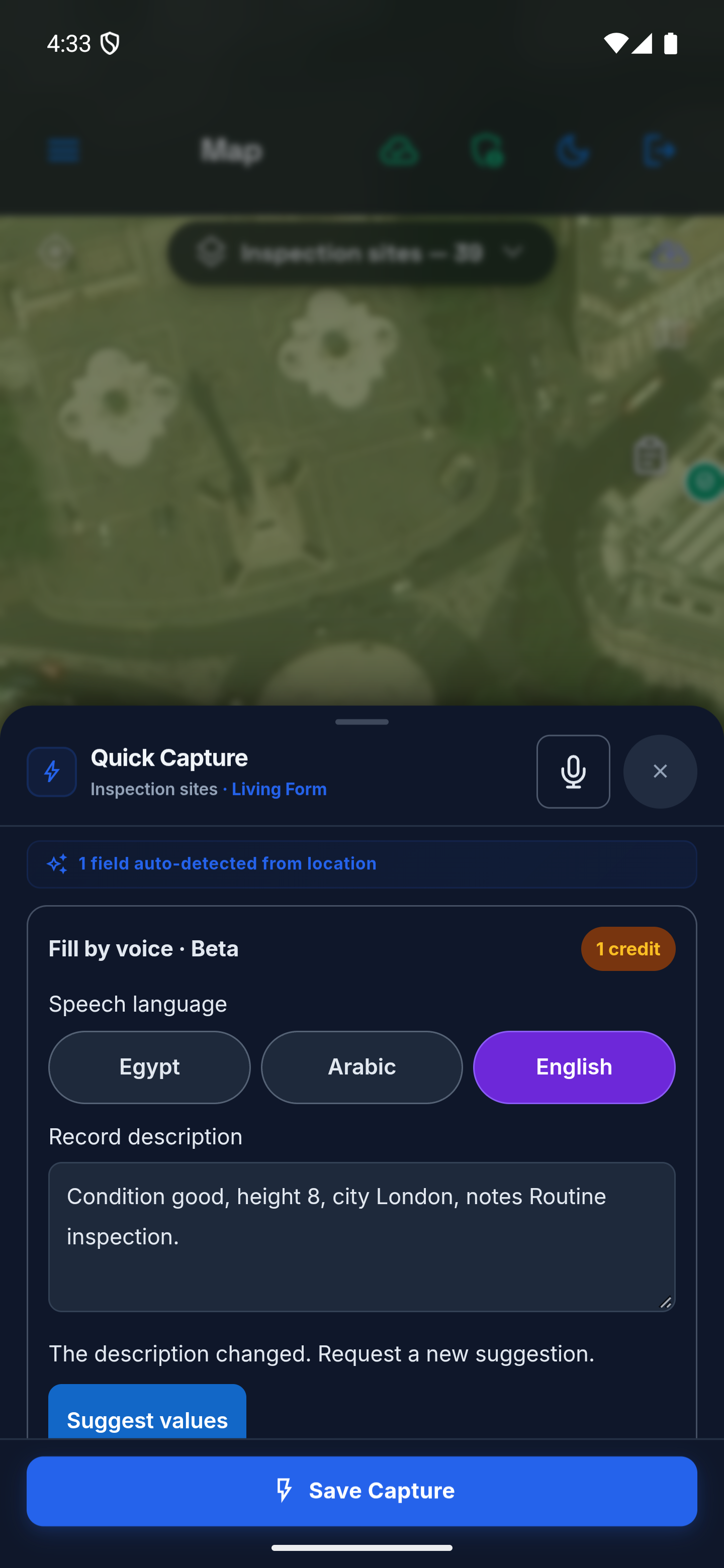
- In the Quick Capture form, tap the microphone button, labeled Voice fill. This opens Fill by voice · Beta and starts listening when microphone access is allowed. If you want to check the language or privacy notice first, choose Finish speaking and wait for listening to stop.
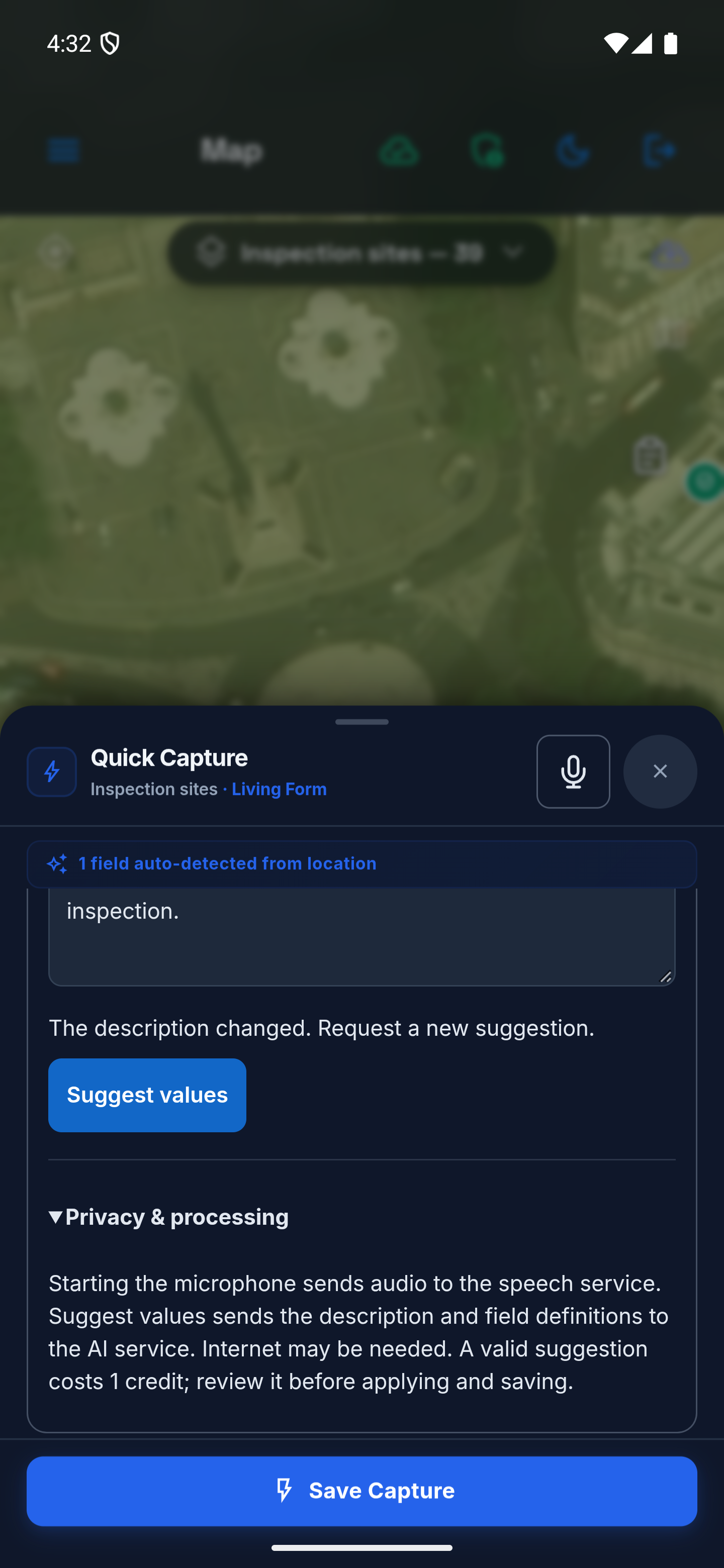
- Read Privacy & processing and the 1 credit indicator before continuing or asking for a suggestion. Scroll inside the form to reach the notice. Workspace access and AI processing permissions apply.
- Choose Speech language: Egypt for Egyptian Arabic, Arabic, or English. In the Arabic interface, Egypt is shown as مصري. The dedicated microphone needs the Android speech service. If it is unavailable, type into Record description or use your keyboard's dictation.
- With your chosen language selected, tap the microphone button again to start a recording, grant microphone permission if requested, and describe this record. Choose Finish speaking when finished, or wait for recognition to finish. Check the text in Record description and correct names, identifiers, numbers and negation. A further recording appends to the existing description; it does not replace the earlier sentence. Review the combined text before continuing. The description accepts up to 4,000 characters; an addition that would exceed the limit is not appended.
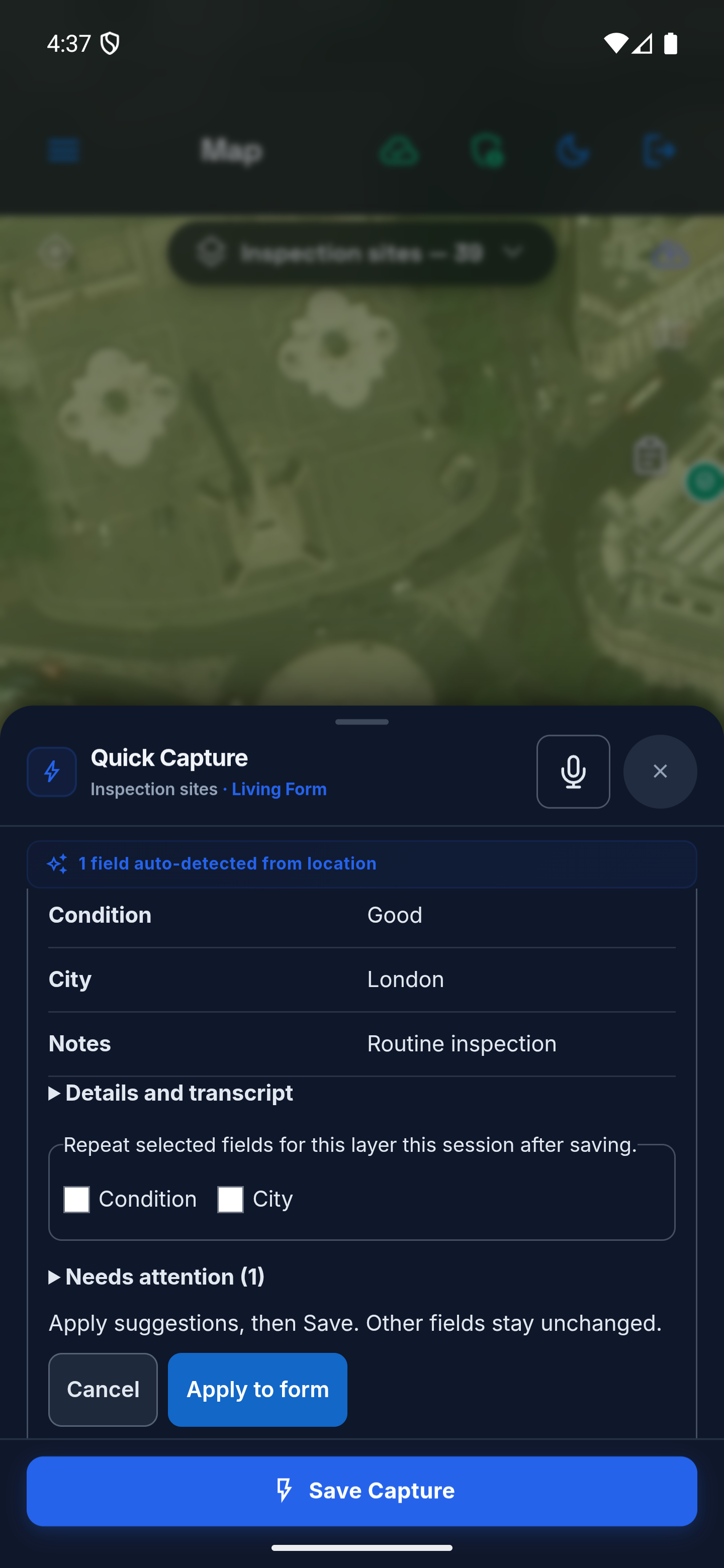
- Choose Suggest values. Review the suggestion count and field-value table, then expand Details and transcript to compare each value with its Heard excerpt. Also review any Form rule changes, such as a field becoming required or visible.
- Expand Needs attention when it appears and read why a value could not be filled. Valid suggestions can still be applied; unresolved fields remain unchanged. Complete those fields manually, or clarify the description and request another suggestion.
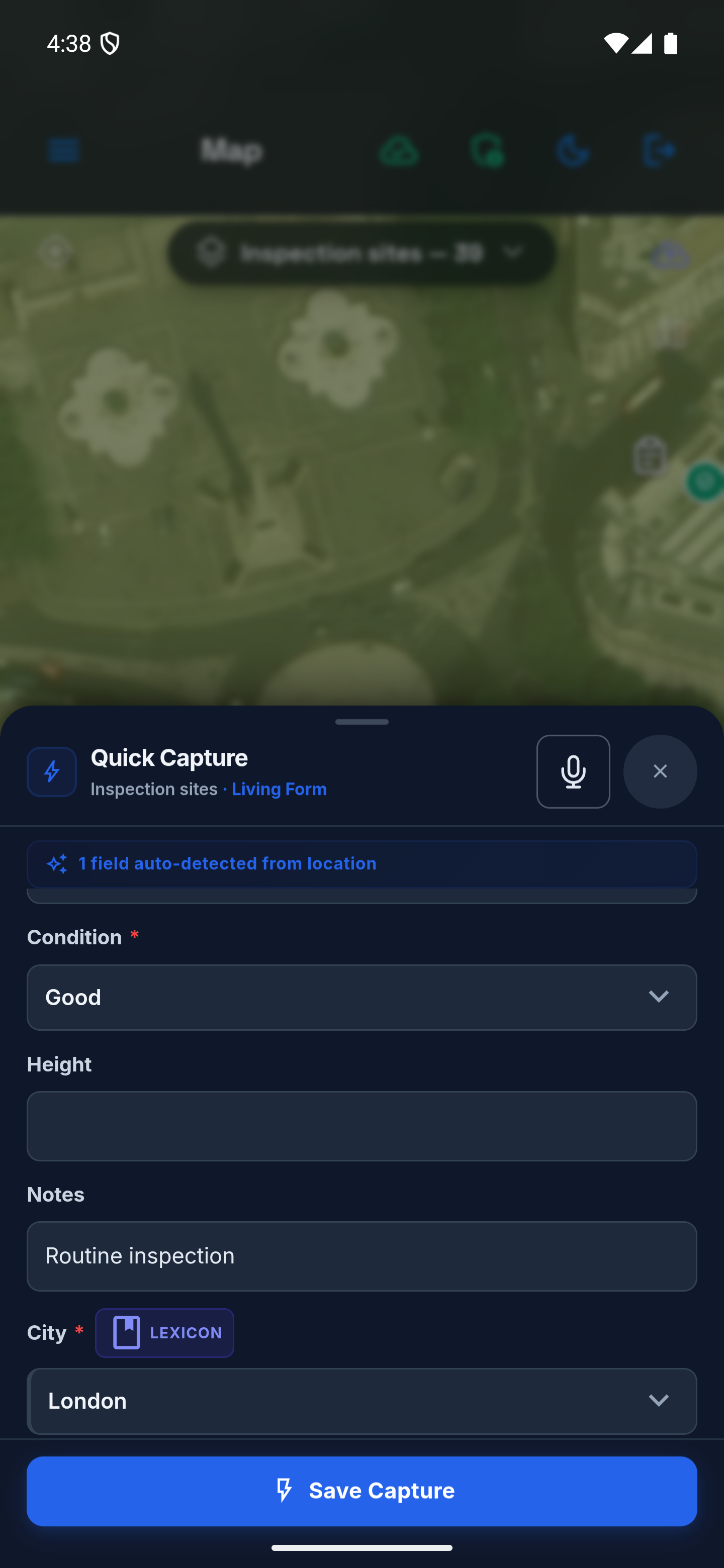
- Choose Apply to form to apply the displayed valid suggestions together. Any Repeat selected fields checkboxes choose defaults for later captures; they do not select which suggestions Apply uses. If one suggested value is wrong, correct the description before requesting again, or correct that field in the form after applying.
- Review the filled form, complete any remaining required fields, add photos or attachments normally, and choose Save Capture. Reopen the saved record to verify it. Apply to form does not save the record or confirm cloud synchronization.
Phone example: review a partial suggestion
In this example, the fictional description is typed into the voice-entry panel: “Condition good, height 8, city London, notes Routine inspection.” Review the suggested values before applying them.
Geova proposed Good, London and Routine inspection. It left Height for clarification because the description and form did not establish a unit. In your form, define the intended unit and include it in your description; do not guess a missing unit.
See the language choices and privacy notice
See the review and the form after Apply
Repeat selected values during this session
In the suggestion review, select only the fields you want repeated for this layer. Choose Apply to form, review the record and Save Capture. Selected, unchanged values become defaults only after that save succeeds. If you manually change a selected value before saving, that different value is not silently made the new repeated default.
The next capture shows Repeated values — review before saving. Check every record; repeating these saved values makes no new AI request. Stop repeating stops defaults for future records but leaves the current draft's values unchanged.
These defaults last only for the current session and context. Turning Quick Capture off, changing project or account/workspace, or restarting the app clears them. A changed form can also stop reuse when it is no longer safe. This is not a permanent form default or a saved transcript.
Which Fields Can Voice Fill?
| Field or value | Behavior |
|---|---|
| Empty text and number fields | Can receive a supported suggestion; existing non-empty values are preserved |
| Dropdown and Lexicon choices | Must match an available choice; use its displayed label |
| Checkboxes | Can change when the description explicitly states yes/no; review carefully, including changes to an existing checked state |
| Hidden, read-only, calculated, spatially mapped or automatic geometry fields | Excluded from voice suggestions; their existing entry or calculation workflow remains in control |
| Dates, photos, galleries and attachments | Complete with their normal controls |
Unmentioned values are not automatically cleared or filled. Smart Logic may change other fields after a proposed value is applied; those consequences appear in the review. Numbers with unclear units, ambiguous identifiers or uncertain list matches may be withheld for clarification. Voice entry does not convert units. Use clear field labels and short, separate facts; spell identifiers exactly in the description when speech recognition is ambiguous.
The current suggestion request considers up to 40 eligible fields. Choice fields with more than 100 options are excluded; use the normal picker for these fields.
Points, Privacy and Interrupted Work
A valid suggestion delivered for review uses one workspace AI point, including a partial suggestion with usable values. Applying those values or saving the record does not add another voice point. Requesting a new valid suggestion is a new charge; completing unresolved fields manually avoids another request. A clarification-only, rejected or Already set. No changes needed result does not use a voice credit. Cancelling after a valid preview has arrived does not undo its charge.
The speech service processes audio; Geova AI receives the description and eligible field definitions, including relevant choices and units. Existing record values, geometry and attachments are not automatically included in this form-fill request. Anything you dictate or type into the description is included. The description is not saved as an extra record field. This does not establish the speech or AI provider's retention policy.
AI suggestions require internet access even if the device can transcribe speech locally. Continue with manual form entry when the service is unavailable.
Changing the form, description or speech language invalidates the current preview. Cancel, collapsing the voice panel, closing the capture form or backgrounding the app cancels pending voice work. Cancel in the voice panel does not undo values already applied to the form. Review the current form before continuing. See voice-entry troubleshooting.
Open assigned work from the map
Where Work is enabled, use Work map to review permitted work at asset locations. A Collector sees assigned work; the map does not grant access to other team members’ orders. Show asset on map from the work panel takes you to the asset, where you can open its available work actions.
To hide or restore this shortcut, use Settings → Field tools → Work map icon. Hiding the icon does not delete orders or turn off Work access. See Work schedule and My work for role-specific steps.
Recording a GPS Path (Auto-Track)
Use Record Path when walking a route that should become a line feature.
- Enable GPS Recording Tools in Settings and select a line layer.
- Tap Record Path. Set the minimum distance and time between accepted fixes, maximum accuracy error, and gap duration. Defaults are 2 m, 3 seconds, 25 m, and 30 seconds. Choose values suited to your task and equipment; these limits do not certify measurement accuracy.
- Start recording. The status shows whether GPS is waiting, recording, interrupted, denied, or below the chosen accuracy threshold, together with the age of the last accepted fix.
- Tap the recording control again to stop and open Review route. Check the original destination, point count, gaps, isolated fixes, and length.
- Choose Save, complete the feature form, and save it. Closing the review or attribute form keeps the route draft. Discard draft removes it only after confirmation. Export draft downloads GeoJSON containing the accepted fixes with time, reported accuracy and source, gap reasons, rejection totals, and up to 500 recent quality-rejection details. Samples skipped by the distance/time policy are counted separately. These are reported GPS fixes, not smoothed or survey-certified positions.
Drafts belong to the original account, project, and layer. Return to that destination to resume or save; selecting another layer does not move the route. A recovered draft requires Resume. A second browser tab cannot write the same recording while the first tab owns it.
Record Path pauses when its browser/app screen is hidden. Returning to the map does not silently restart it. Navigation retains the draft, but clearing app data or completing secure logout removes local drafts.
GPS interruptions and quality failures split the route. Isolated fixes are retained in the draft but excluded from the saved line; at least two connected fixes are needed. Routes crossing the antimeridian display locally and export as separate line parts at ±180°. Positions remain WGS84 and distances remain metres in every interface language.
Silent Track
Silent Track uses the same destination binding, configurable sampling, recovery, and review workflow. Tap Silent Track, review the settings, and start. The visible Show / hide route control also works by touch and keyboard.
On Android builds containing the native recorder, starting while the app is visible requests location permission and starts a location foreground service. It records with the screen locked and keeps a durable journal independently of the map screen. An ongoing location notification provides Stop when notifications are allowed. GPS still depends on device reception and Android's system restrictions.
If permission is denied or revoked, GPS is disabled, the process is interrupted, or Android prevents recording, the draft is retained and recording must be explicitly resumed. Mapplex does not claim that locations were collected during the interruption. Force-stop does not automatically restart recording.
If battery saver pauses Silent Track: the status says Paused by battery saver — return to the app and Resume. This happens when the device power policy disables or throttles GPS while the screen is off. Recorded fixes remain in the draft. Return to the original project and layer, review the route and location access, then choose Resume when ready. Waking the screen or restoring GPS alone does not restart recording. Resume starts a new segment; the app does not fill the interruption with invented positions. If the same power restriction remains, locking the screen can pause recording again.
Browsers and platforms without the native recorder pause when hidden or locked. Return to the app and choose Resume to continue with a new segment. Check the recording status and last accepted fix rather than assuming background capture.
Tap the Silent Track control again to stop and review. Saving or discarding clears its native journal only after the requested operation succeeds. A native draft pending in another project must be finished there before starting another native route. Storage failures stop collection and retain previously committed samples; keep the map open and export a draft that cannot be written to storage.
Old unscoped Silent Track data from earlier builds is retained locally but is never automatically assigned to the currently open account or project.
4. Manual Coordinate Entry
Use a known latitude, longitude pair when the source coordinates are more appropriate than a new phone reading.
- Enable Manual Coordinate Entry in Settings if its map control is hidden.
- Open Enter Coordinates.
- Enter decimal latitude first and longitude second, separated by a comma, for example 31.2001, 29.9187.
- Choose Place Point.
- For a Point layer, complete and save the form. For a LineString or Polygon layer, the coordinate adds a vertex to the current drawing; finish the remaining geometry and save.
Latitude must be between −90 and 90, and longitude between −180 and 180. Numeric values inside those ranges can still represent the wrong location if their order or source is wrong. This input does not convert an easting/northing pair from another coordinate system.
Pasting a Location
Copy the coordinate pair first, in latitude, longitude order. With radial drawing controls on, open the menu on empty map space and choose Paste Loc. It attempts to read coordinates from the clipboard, with an Input Coordinates prompt when clipboard access is unavailable. If the clipboard is empty or cannot be parsed, copy a valid pair and choose Paste Loc again; an empty clipboard does not open the manual prompt.
Unlike direct coordinate entry, this route presents a temporary pin that you can inspect and adjust before Confirm Location or Add Vertex. See Contextual drawing.
5. Measurement Tools
With radial controls on, long-press empty map space (or right-click) and choose Measure. With the toolbar shown, use the separate Measure Tool button. The map enters Measure Mode. Measurements are temporary overlays; they do not add a feature to the active layer.
Simple Distance (2 points)
Tap two points on the map. A distance label appears at the midpoint showing the measurement.
Multi-Segment (3+ points)
Tap more than two points. The system displays:
- Individual segment labels between each pair of vertices (shown in indigo badges)
- Running total distance at the final vertex (shown in green)
- Units: Metric (meters/km) or Imperial (feet/miles) based on settings
Area Measurement (Closed Shape)
Tap 3+ vertices and bring the final point close to the first point. A magnetic snap zone (glowing green circle) appears around the first vertex:
- When you're close enough, the circle enlarges and pulses with a glow animation
- Snap to it to close the polygon
- The system calculates and displays both Perimeter and Area
Drafting Controls
While measuring, the toolbar provides:
- Clear — Clear current measurement and start fresh (stays in measure mode)
- Close Shape — Force-close the polygon to calculate area
- Undo — Remove the last placed vertex
- In radial mode, Finish closes a shape, Clear Measurements starts a fresh measurement, and Cancel exits and clears the overlays.
- Add Point first activates the precision crosshair; subsequent presses add the map-center location. In Precision, Cancel first returns to ordinary Measuring; cancel again to leave.
- With the toolbar shown, tap the measure button again to exit.
Benefit: Check a proposed distance or area before deciding whether to collect a formal feature. Use a drawing layer and its form when the result must become a project record.
6. Basemap Switching
Tap the 🗺️ Basemap Toggle button (top-right) to switch between:
- Satellite imagery — High-resolution aerial photography
- Street map — Standard road and place names
The current basemap persists across sessions.
7. Offline Map Caching
Work in areas with no internet? Download the tiles beforehand:
- Navigate the map to the area you need.
- Tap the ☁️↓ Offline Map button (top-right).
- The download covers the visible area at the current zoom and the next two more-detailed zoom levels, up to level 18.
- A progress indicator shows download status.
- Once cached, tiles load from local storage — no internet required.
Test the required area and zoom levels while disconnected. Download progress alone does not prove that every tile request succeeded. Cached tiles provide map context; they do not download the project's forms or records. See offline preparation.
8. Clustering & Performance
Smart Clustering
When enabled (default), features that are close together visually cluster into numbered bubbles at lower zoom levels. Tap a cluster to zoom in and reveal individual features. This prevents visual overload when your project has thousands of features.
Overlapping Cluster Expansion
When clustered features overlap at the same location, tapping the cluster can expand the points so you can select individual features.
Canvas Rendering & Viewport Culling
For projects with many features, Mapplex uses optimized rendering techniques:
- Canvas rendering — Draws large point sets more efficiently than individual HTML markers.
- Viewport culling — Keeps off-screen features out of the active rendering area.
- Dynamic loading — For very large projects, loads data for the current viewport instead of drawing the full dataset at once.
9. Feature Popups & Editing
Viewing a Feature
Tap any feature on the map to open its popup. The popup shows:
- All form field values
- Photos (with gallery navigation)
- Computed geometry info (coordinates, area, perimeter)
- Action buttons: Edit, Delete, and History where available (based on your role and workspace entitlement)
Editing a Feature's Attributes
- Tap a feature to open its popup.
- Tap Edit.
- The form opens in a bottom sheet. Make your changes.
- Tap Save.
Editing a Feature's Geometry
- Open the radial menu on an editable feature and choose Geometry, or enter Edit Shape from the visible toolbar and select the feature.
- For a line or polygon, use the vertex handles to adjust its shape.
- For a point, follow Point selected. Tap the map to move it. Select the intended point, then tap its new position. Marker dragging is also available for supported marker rendering while editing.
- In the radial action bar, Finish commits the geometry-edit session and Cancel requests discard. With the toolbar visible, selecting Edit Shape again commits and Cancel discards.
- Reopen the feature and verify the result.
Point movements can be written during the session; the edit controller retains the original geometry for discard. Finish or explicitly discard before leaving the task. Do not assume that merely closing a popup reverses the edit.
10. Advanced Editing: Split & Merge
(Available to project Owners and Admins. Enable Advanced Edit for the side-panel entry. With radial drawing controls enabled, authorized polygon actions are also available directly from the contextual menu.)
Splitting a Polygon
- Tap the Advanced Edit button. The Advanced Edit panel appears.
- Tap Split Polygon (scissors icon).
- Draw a line across the polygon you want to divide. The split line must enter on one side and exit on the other.
- When the line is complete, the polygon is divided into two separate features, each inheriting the original's attributes.
Example: A parcel boundary needs to be split after an approved subdivision. Draw the split line across the parcel; Mapplex creates two polygon features that can be reviewed and edited separately.
Merging Polygons
- Tap the Advanced Edit button. The Advanced Edit panel appears.
- Tap Merge Polygons (join icon).
- Tap two or more adjacent polygons. Selected polygons highlight in red.
- The state indicator shows "SELECTED: 2" (or more).
- Tap Finish to merge them into a single feature.
Note: Merged polygons must be from the same layer. The merged feature inherits the properties of the first selected polygon.
Radial Command Palette
With Use radial drawing controls enabled, long-press or right-click an editable polygon while the map is idle. Authorized Split and Merge actions start from that polygon. The same menu also adapts to empty space, ordinary features, and point clusters; follow Contextual drawing and precision controls.
11. Layer Visibility Panel
Tap the 👁️ Layers button on the right side to toggle the Layer Visibility Panel. This floating panel lists all layers with eye-toggle switches:
- Toggle individual layers on/off without leaving the map
- Reference layers (imported KMZ backgrounds) are listed separately
- Changes apply without reloading the map
12. Map Timeline (4D Temporal Playback)
The timeline is available inside the Layer Visibility Panel and works across all currently visible project layers. It does not limit the dataset to the current map extent.
- Open Layer Visibility and enable Map timeline.
- Choose Created time, Updated time, or an available form date field.
- Choose Cumulative to reveal everything up to the selected instant, or Time window to show only the selected 1-day, 7-day, 30-day, or 1-year period.
- Drag the slider or use Play. Playback speed can be changed between 0.5×, 1×, 2×, and 4×.
- Read the exact visible/total feature count and the number of records excluded because the selected date is missing or invalid.
Dates are displayed in the active project's timezone. Layers that you hid manually remain hidden while the timeline runs and after it closes. Newly collected or synced features are added to the active timeline without requiring a complete rescan.
If no valid dates exist in the visible layers, Mapplex keeps the timeline disabled and shows a warning instead of hiding data unexpectedly.
Example: A field team can use a 7-day window to review recent inspections while keeping older records stored and unchanged.
13. Geova AI Preview Layer
When Geova AI runs a spatial analysis (from the Chat module), results can be projected onto the map:
- The AI Preview Pill (bottom-left) shows "AI Result" with show/hide and clear controls.
- A Ghost Layer Pill shows previous AI query results for comparison.
- These are visual overlays only — they don't modify your project data.
14. Map State Persistence
When you navigate away from the Map View and return, the map restores your last position (center and zoom level) automatically. This state is saved per-project so switching between projects doesn't lose your viewport.
15. Sketch Notes
Enable Sketch Mode in Settings, then open Sketch Tools on the map. Choose Pin, Freehand Line, or Highlight Area, and a color such as Alert, Caution, or Info. Complete the annotation, open its popup, enter a note, and select Save Note.
Sketches are local annotations stored for the project on the current device. They do not go through the active layer's collection form or its normal hosted feature-sync workflow. Use a collected feature when the observation must enter that shared dataset.
Benefit: Mark an area to revisit or attach a quick visual reminder during local review. Keep important evidence in the project's supported record-and-attachment workflow.
Next: Proceed to Module 04: Forms & Smart Logic to build data collection schemas for your layers.